
Short answer: BizKhata has a dedicated POS screen for the shop counter: item tiles, a barcode box, big colour-coded payment buttons, hold and recall for bills in progress, and a function-key bar so the cashier can bill without the mouse.
The counter screen
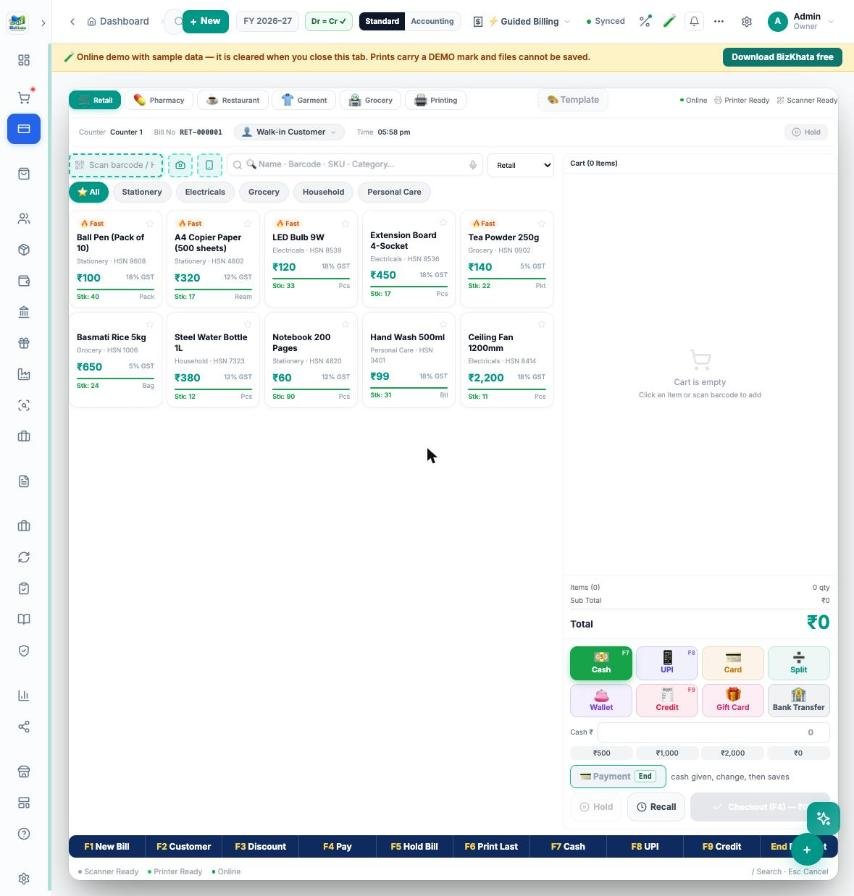
- Item tiles show price, GST and stock; tap to add. Category chips filter the tiles.
- Barcode box adds an item the moment it is scanned; a name, barcode or SKU search is next to it, and / jumps to search.
- Business tabs at the top — Retail, Pharmacy, Restaurant, Garment, Grocery, Printing — change the item layout.
- Hold and Recall park a bill while the next customer is served.
Payment in one tap
Cash, UPI, Card, Split, Wallet, Credit, Gift Card and Bank Transfer are colour-coded tiles. For cash, quick amounts and change due are shown; Split divides the bill between cash and UPI. The grand total is large so the customer sees it too.
Function keys
F1 New Bill, F2 Customer, F3 Discount, F4 Pay, F5 Hold Bill, F6 Print Last, F7 Cash, F8 UPI, F9 Credit, End opens the payment window. The same keys are shown on a bar at the bottom of the screen, and each is clickable.
Printing and reports
Print on 58 mm or 80 mm thermal paper or as an A4 invoice. Every POS sale lands in the same books, so stock, GST, day book and the trial balance are always current.
FAQ
Does it work without internet? Yes.
Can I use a barcode scanner? Yes, any USB scanner that types into the box.
Try it on your own bills
Open the online demo (sample shop, nothing to install) or download the 7-day free trial for Windows and Mac. BizKhata works offline, so billing never waits for the internet.