
Short answer: BizKhata does not force one billing screen on every shop. It has seven sale-bill modes — Carbon, Guided, Simple, Advanced, Export, Ledger-grid and Clean-grid — plus a separate POS counter screen. You pick the one that suits your business under Sale opens in, and you can switch any time without losing data.
Why more than one bill screen?
A pharmacy that bills fifty customers an hour, a flex shop that sells by square foot, an exporter filling a shipping bill number and a consultant sending one invoice a week do not need the same screen. One crowded form slows all of them down, so each mode keeps only what that kind of billing needs.
1. Carbon — keyboard-only, fastest
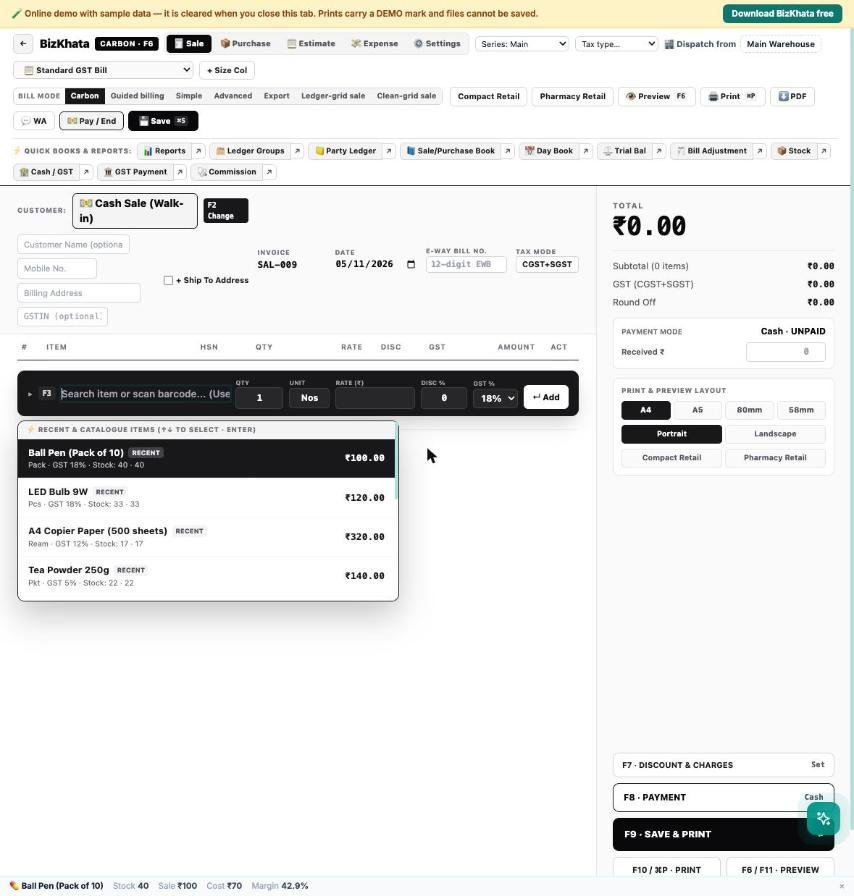
The cursor never has to leave the keyboard. Cash Sale is the default party; F2 changes it, F3 adds an item, F8 opens payment, F9 saves and prints. Suggestions show stock and sale rate as you type.
2. Guided — step by step
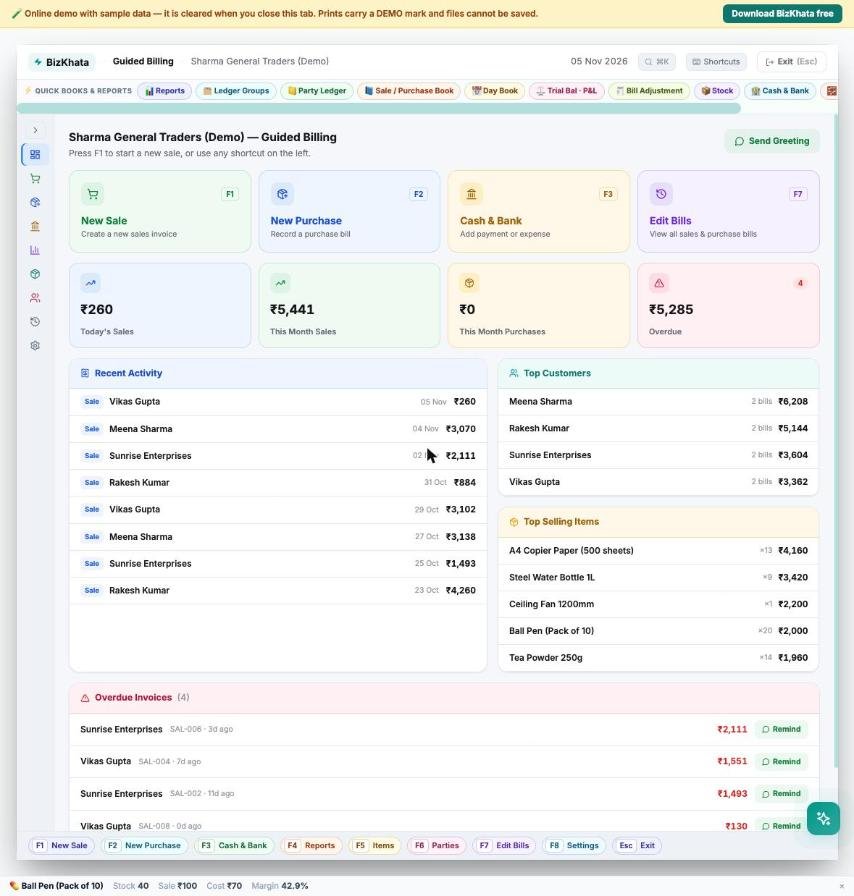
For a new staff member: large cards (New Sale, New Purchase, Cash & Bank, Edit Bills), recent activity, top customers and overdue invoices with a Remind button. Every card has a function key shown on it.
3. Simple — one-page GST invoice
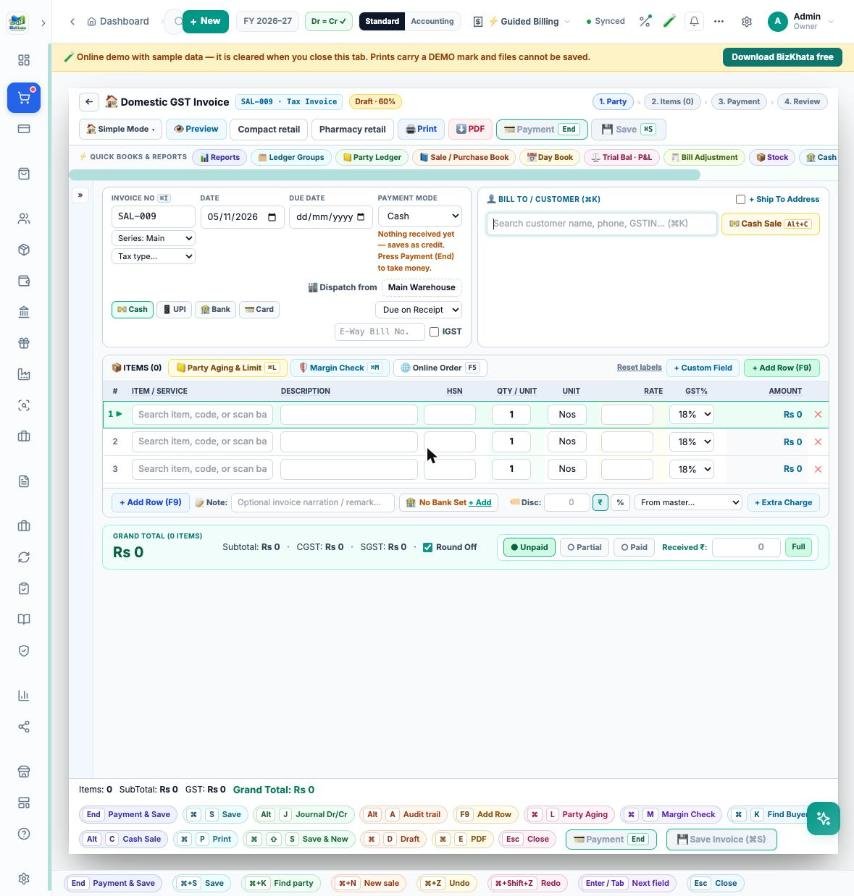
Everything on one page: bill-to, item rows, discount, extra charge and payment status. Print as a normal invoice, compact retail receipt or pharmacy retail layout. Good for freelancers, service businesses and anyone who sends a few invoices a day.
4. Advanced — full GST invoice
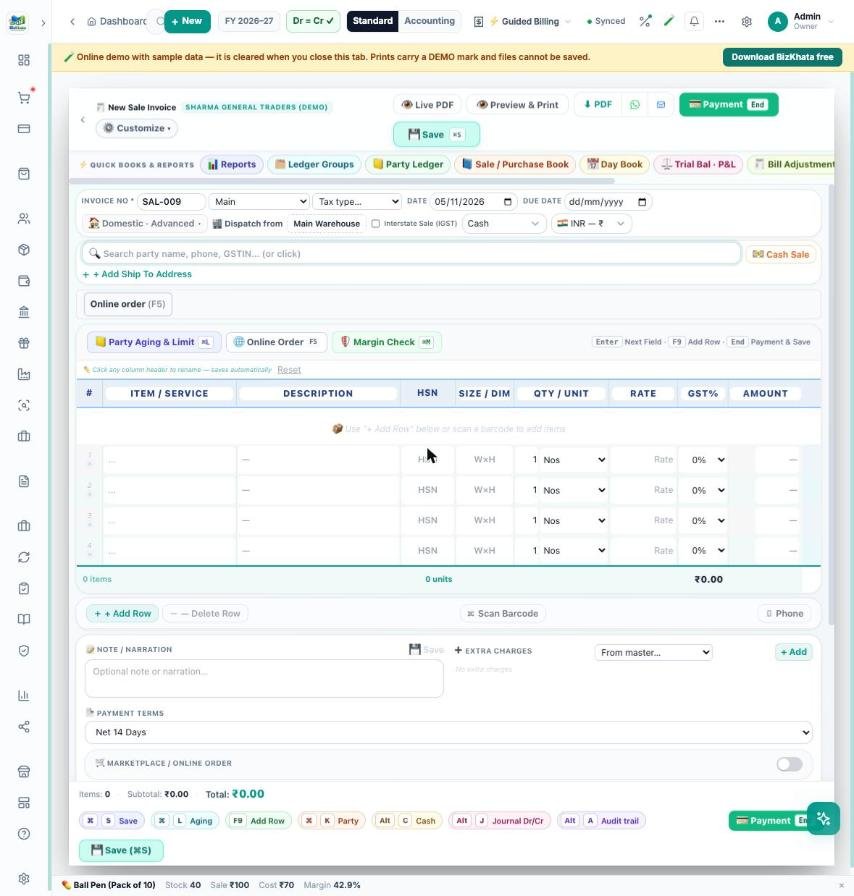
Adds item description, HSN, a size (W×H) column, extra charges, payment terms, ship-to address, live PDF preview and an online-marketplace order switch. Suits flex and print shops, hardware, electronics and wholesalers.
5. Export — commercial invoice
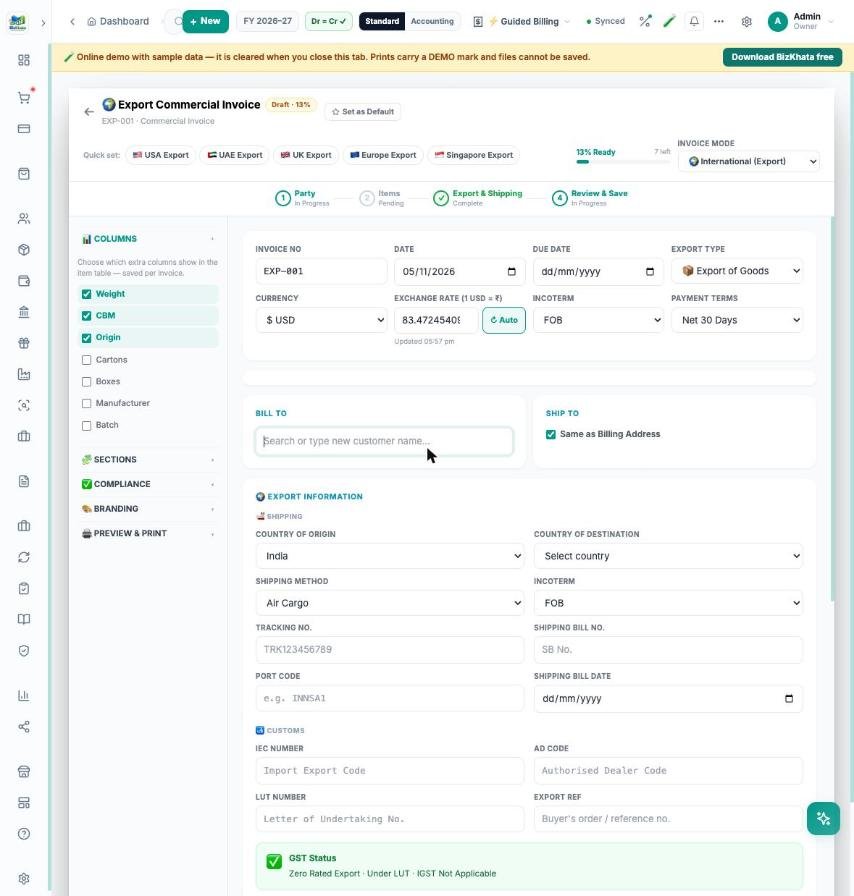
Currency with an automatic exchange rate, incoterm, shipping method, shipping bill number and date, port code, IEC, AD code and LUT number. Under LUT the GST status shows as zero-rated export. Quick-set buttons exist for USA, UAE, UK, Europe and Singapore.
6. Ledger-grid and 7. Clean-grid — spreadsheet-style bills
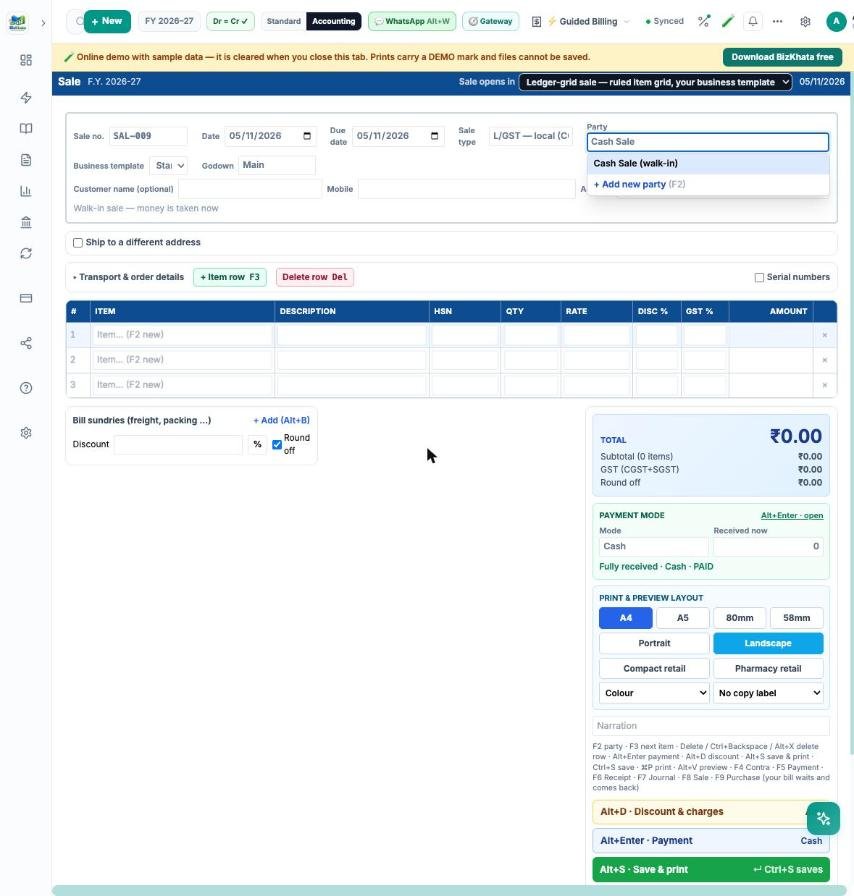
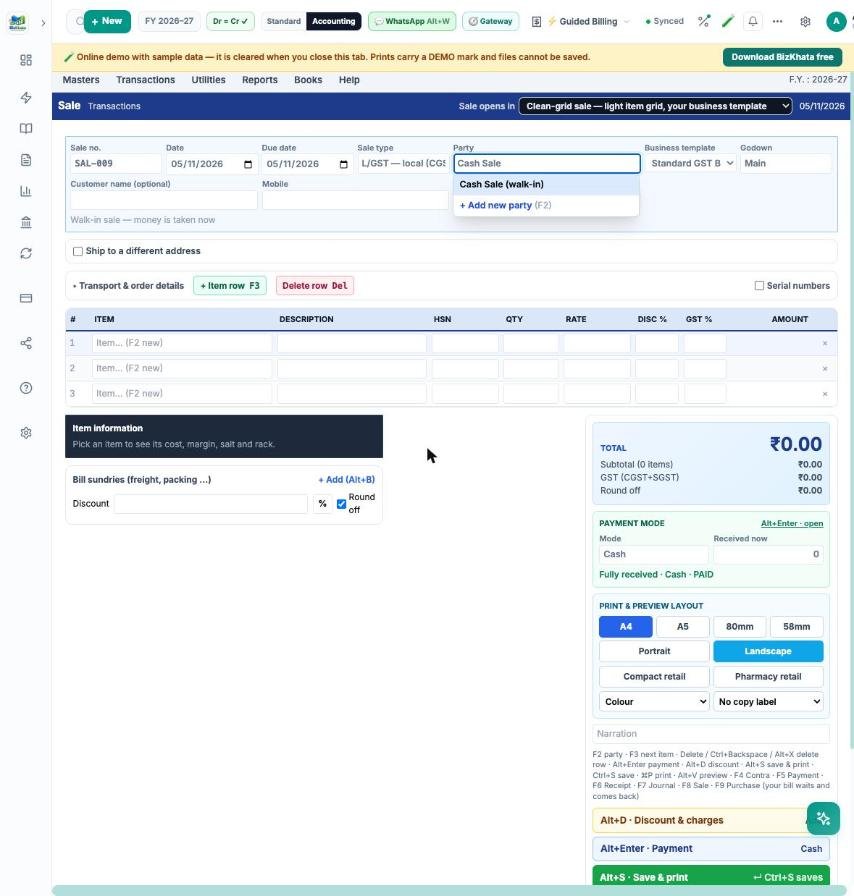
Both are for people who like a table: a party box, an item grid with description, HSN, quantity, rate, discount and GST, bill sundries (freight, packing), a live total and payment panel. Ledger-grid has ruled lines and a navy header; Clean-grid is lighter. Press F2 for the party, F3 for a new item row, Alt+S to save and print. The business template box chooses the extra columns — for example size for flex shops, batch and expiry for pharmacies, free quantity for distributors.
The POS counter
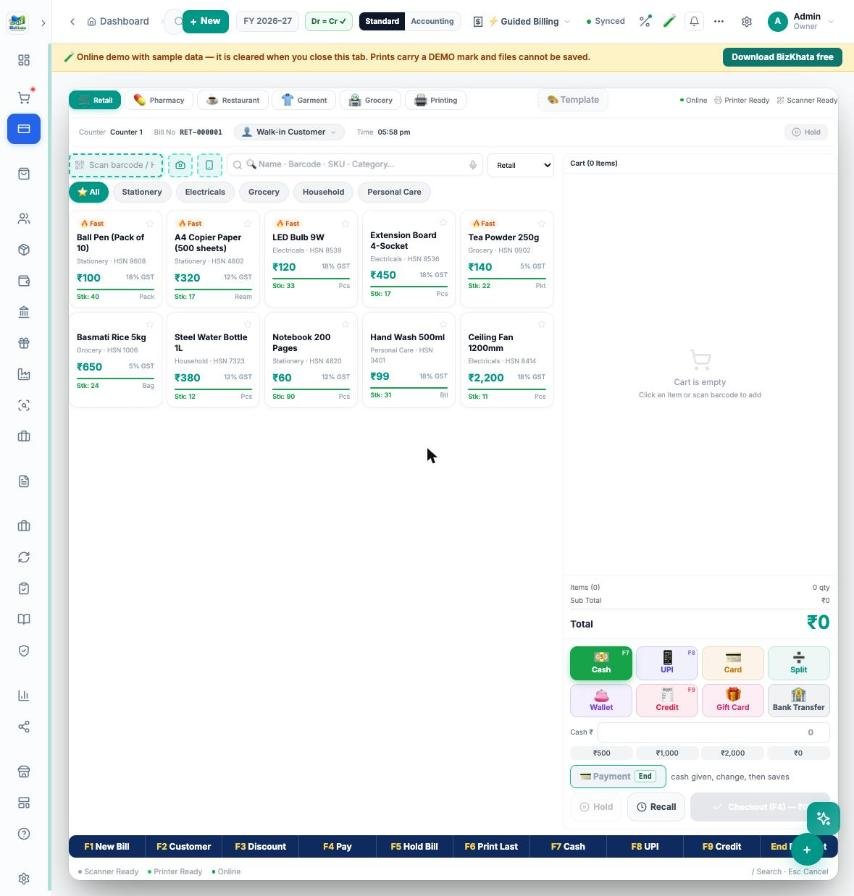
For a retail counter there is a separate POS screen with item tiles, a barcode box, hold and recall, split payment and a function-key bar: F1 New Bill, F2 Customer, F3 Discount, F4 Pay, F5 Hold Bill, F6 Print Last, F7 Cash, F8 UPI, F9 Credit.
Which mode for which business?
- Medical store / pharmacy: Carbon or Ledger-grid with batch, expiry and Schedule H.
- Printing, flex and signage: Advanced or a grid with the size column.
- Garment and footwear: POS or Carbon with barcode.
- Wholesale and distributors: Ledger-grid with free quantity and sundries.
- Freelancer / consultant: Simple.
- Exporter: Export.
FAQ
Can I switch modes later? Yes. The same bills, parties and items work in every mode.
Do the grid modes need the Accounting menu? The two grid modes belong to the Accounting menu layout; the other modes work in both menus.
Does it work offline? Yes, BizKhata is an offline-first desktop app for Windows and Mac.
Try it on your own bills
Open the online demo (sample shop, nothing to install) or download the 7-day free trial for Windows and Mac. BizKhata works offline, so billing never waits for the internet.